01 快速开始01 Quick Start
适合什么时候使用?When should I use it?
当电脑关机、重启时经常被软件卡住,后台软件太多,或你想按应用组查看多个同名进程时,可以先打开 OneClickClose 重新扫描。Use it when shutdown or restart is blocked, too many background apps are running, or you want grouped process visibility.
- Release 便携包:解压后双击根目录的
OneClickClose.exe。Portable release: extract the zip and run OneClickClose.exe.
- 它不是杀毒、广告拦截或系统修复工具。It is not antivirus, ad blocking, or system repair software.
02 扫描后台应用02 Scan Apps
从总览页判断当前状态Start from the overview page
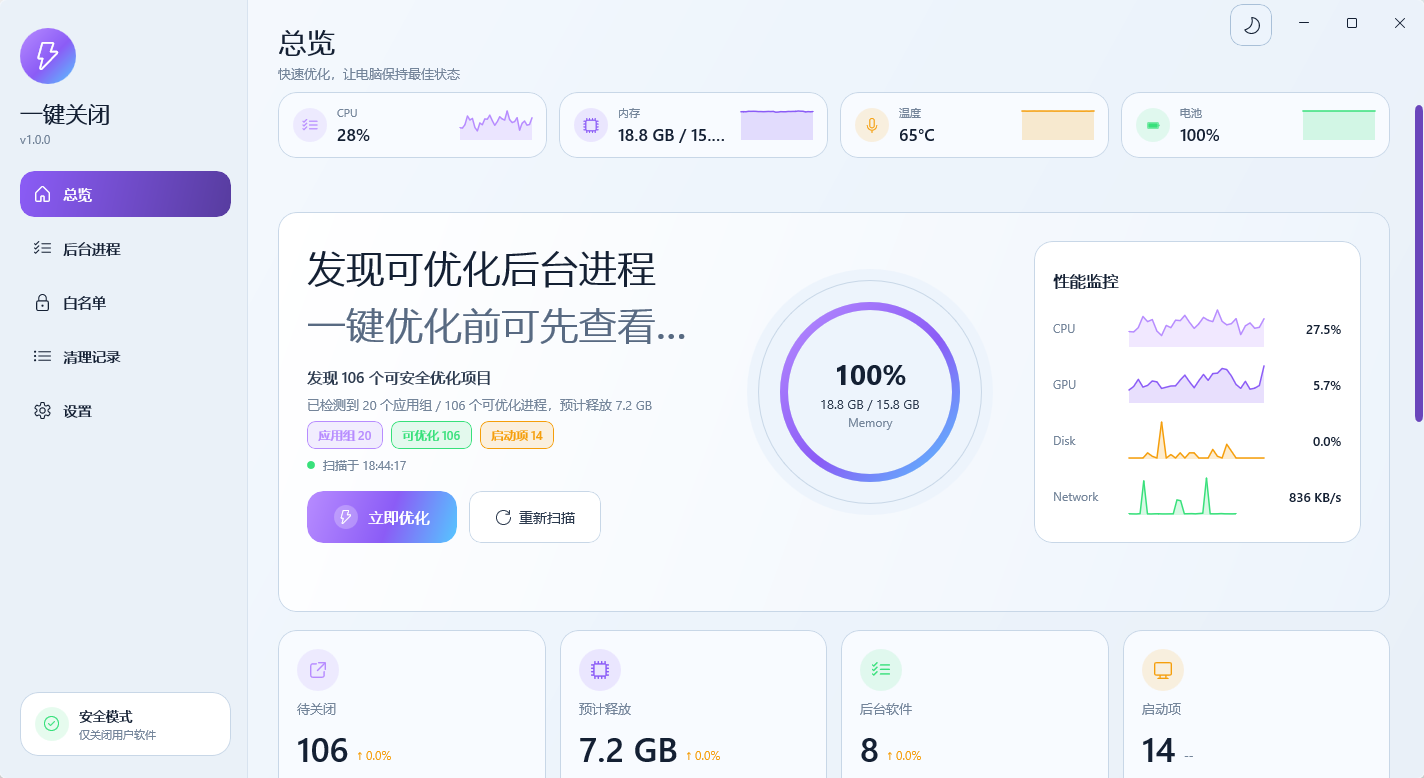
总览页会显示 CPU、内存、温度、可优化进程数量,以及后台应用组和高风险进程预览。需要重新判断时点击“重新扫描”。The overview page shows CPU, memory, temperature, optimization candidates, grouped apps, and high-risk previews.
- “立即优化”会进入关闭前确认流程。
Optimize now opens the confirmation flow.
- “查看全部”跳转到后台进程页查看完整列表。
View all opens the full background process list.
03 展开应用分组03 Expand Groups
把多个进程看成一个应用Treat related processes as one app
后台进程页会按应用名称、图标和路径折叠进程。展开后可以查看每个子进程的 PID、窗口标题、路径、内存和风险。The process page groups related processes by app. Expand a group to inspect PID, title, path, memory, and risk.
- 列表会展示应用组、进程/内存、建议、风险和操作。Columns include app group, process/memory, suggestion, risk, and actions.
- 不确定时,先展开确认路径,再决定关闭或保护。When unsure, expand and check the path before closing or protecting.
04 一键优化流程04 Cleanup Flow
先预览,再执行Preview before execution
一键优化会先过滤系统进程和白名单,按应用分组,生成关闭前预览。你确认后,才会先温和关闭,再按安全策略处理低风险候选。Cleanup filters system and allowlisted processes, groups apps, shows a preview, then runs only after confirmation.
- 关机清障规则会纳入可能阻碍关机的用户软件。Shutdown-blocking user apps can be included as candidates.
- 系统进程、白名单和当前工具进程仍然保护。System processes, allowlisted apps, and the current tool stay protected.
05 管理白名单05 Manage Allowlist
保护不希望被关闭的软件Protect apps that should not close
适合加入白名单的软件包括工作中的编辑器、IDE、终端、文件同步、会议、语音、录屏和需要常驻的安全工具。Protect editors, IDEs, terminals, sync tools, meetings, voice apps, screen recorders, and security tools.
- 可在后台进程页“更多操作”中加入白名单。Add from the process page action menu.
- 也可在白名单页或设置页手动编辑。You can also edit it from Allowlist or Settings.
06 查看清理记录06 Review History
回看每一次关闭结果Review every cleanup result
清理记录会显示关闭了哪些软件、哪些进程被保护或跳过、哪些仍在运行,以及温和关闭和强制结束的执行结果。History shows what closed, what was protected or skipped, what still runs, and how each action completed.
- 记录保存在本机,不会上传。Records stay local and are not uploaded.
- 如果软件关闭后又出现,检查启动项、计划任务或软件守护进程。If an app returns, check startup items, scheduled tasks, or its own watchdog.
07 调整设置07 Adjust Settings
用策略控制候选范围Control candidate scope with rules
设置页用于管理扫描、关闭、安全策略、主题和名单。建议开启“自动检测用户软件”和“关机清障规则”。Settings control scanning, closing, safety policies, themes, and lists. Keep user-app detection and shutdown blocking enabled.
- 候选内存阈值默认 128 MB,值越低候选越多。The candidate memory threshold defaults to 128 MB; lower values include more apps.
- 如果误关风险高,优先加入白名单,而不是关闭整条规则。For false positives, use the allowlist before disabling an entire rule.
08 主题与温度08 Themes and Temperature
外观可切换,温度不影响清理Appearance can change; cleanup still works
应用支持亮色和暗色主题。硬件温度优先使用 LibreHardwareMonitorLib,失败时可能回退到 WMI。The app supports light and dark themes. Temperature uses LibreHardwareMonitorLib first and may fall back to WMI.
- 温度不显示通常与传感器、驱动或权限有关。Missing temperature data is usually about sensors, drivers, or permissions.
- 温度不显示不影响进程关闭功能。Cleanup works even when temperature is unavailable.
09 安全边界09 Safety Boundaries
本地习惯只影响建议Local habits only affect suggestions
OneClickClose 会记录本地操作习惯:多次确认关闭的软件会优先建议关闭,多次跳过的软件会建议保护,但不会接入云端 AI、上传进程历史或静默强杀。Local habit learning can improve suggestions, but it does not use cloud AI, upload process history, or silently force close apps.
- 默认保护 Windows 系统路径、内置保护名单、手动白名单和 OneClickClose 自身。Windows system paths, built-in protected names, manual allowlists, and OneClickClose itself are protected.
- 日常流程:重新扫描,确认候选,把重要软件加入白名单,再执行优化。Daily flow: rescan, review candidates, allowlist important apps, then optimize.
没有找到匹配的文档No matching guide section
换一个关键词试试,例如“后台进程”“白名单”“温度”“设置”。Try another keyword, such as process, allowlist, temperature, or settings.